
How to Keep Model Photos Consistent Across Shopify Product Pages
Small fashion teams struggle to keep product pages visually consistent across categories, launches, and restocks.
For Shopify fashion brands, visual consistency is not just a branding preference. It shapes how polished your store feels when shoppers move from collection pages to product pages, browse related items, and compare new arrivals with older products.
The problem is usually operational as much as creative. A small team might launch one drop with strong on-model images, then publish the next release with different crops, poses, or backgrounds. In collection thumbnails and related-product modules, those differences become obvious fast.
Some Shopify apps in this space describe features built for repeatable image production rather than one-off edits. For example, Modelize highlights bulk AI image generation across a catalog, reusable presets, on-model options, and publishing to Shopify product listings. See the Look highlights model selection, Shopify gallery integration, and the ability to edit backgrounds and poses for different looks. For merchants, that makes one question more important: what should stay consistent across the catalog in the first place?
If you want a more cohesive storefront without rebooking a shoot for every release, the goal is not to make every image identical. The goal is to define a visual system your team can repeat.
What visual consistency actually means in a Shopify catalog
Consistency gets talked about too vaguely. For a live Shopify fashion catalog, it usually comes down to five practical layers:
- Model family: a consistent casting direction across related products
- Pose logic: a repeatable set of poses for hero shots, side views, and movement shots
- Angle mix: a standard gallery sequence so PDPs feel familiar to browse
- Background treatment: a stable backdrop style and level of visual distraction
- Styling intent: clear rules for when an image is for a PDP versus a campaign asset
When those layers stay stable, your store feels more coherent even as products change.
Why this matters specifically on Shopify
Shopify catalogs are living systems. Products are added, restocked, updated, grouped into collections, featured on homepages, and reused in email or paid social creative. That means inconsistency compounds over time.
A single off-style image can stand out more on Shopify than it would in a seasonal campaign, because shoppers often see products side by side in:
- collection grids
- related-product blocks
- featured collection sections
- search results
- product galleries on mobile
Shopify's Help Center notes that apps are used to enhance the Shopify admin or add new features. In practice, that is useful framing for product imagery too: consistency works best when treated as an ongoing store workflow, not a one-time creative cleanup.
The common reason catalogs become visually inconsistent
Most inconsistency does not come from bad taste. It comes from making image decisions SKU by SKU.
That usually looks like this:
- one launch uses a bright studio look
- the next uses warmer editorial backgrounds
- one category includes front and side angles
- another only has one hero image
- dresses use one model direction while knitwear uses another with no clear system
- restocks go live with flat lays because the original shoot setup is unavailable
Over time, the storefront loses rhythm.
Some Shopify AI image tools position themselves around consistent on-model imagery, reusable presets, and bulk catalog workflows. Modelize explicitly emphasizes bulk generation, presets, diverse models or mannequins, consistency, and publishing to Shopify product listings. See the Look emphasizes model options, Shopify gallery integration, and editing backgrounds and poses. Those feature sets are useful prompts for merchants: define your standards for models, poses, framing, and backgrounds before you scale image production.
Start with a catalog style profile before generating more images
Before creating or updating on-model images, define a simple style profile for your catalog. It does not need to be a long brand document. It just needs to be specific enough that your team can apply it the same way every time.
Include these elements.
1. Your default model direction
Choose a model family for most PDPs:
- one signature model
- two to three core models with clear category assignments
- a defined range of fits, sizes, or demographics that match your brand
The goal is not maximum variety. It is controlled variety.
2. Your default pose set
Decide what poses each product type should include.
For example:
- Tops: front relaxed, slight side, detail crop for neckline or sleeve
- Dresses: front full-length, side angle, movement shot
- Outerwear: front open or closed, back view, detail crop for texture or hardware
- Bottoms: front, side, back, and one fit-context pose if needed
That gives your PDPs structure without making every image identical.
3. Your crop and framing rules
Define how products should sit in frame:
- full body vs three-quarter crop
- whether the head is consistently included
- how much margin sits around the garment
- whether PDP images follow one orientation
This matters most when products appear next to each other in collection pages.
4. Your background rules
Pick one default background treatment for product pages:
- plain light backdrop
- soft neutral studio background
- muted brand-color background
- simple interior scene with minimal props
Then decide when to break that rule.
If you use a tool that supports background edits, keep that flexibility tied to a documented standard rather than changing the setting product by product.
5. Your review standard
Define what still needs human review.
For apparel, common checks include:
- drape around sleeves and hems
- print alignment
- knit texture preservation
- hardware placement
- clean edges around straps, collars, and layers
Consistency does not mean publishing every generated image untouched. It means applying the same review bar each time.
Build separate rules for PDP images and campaign visuals
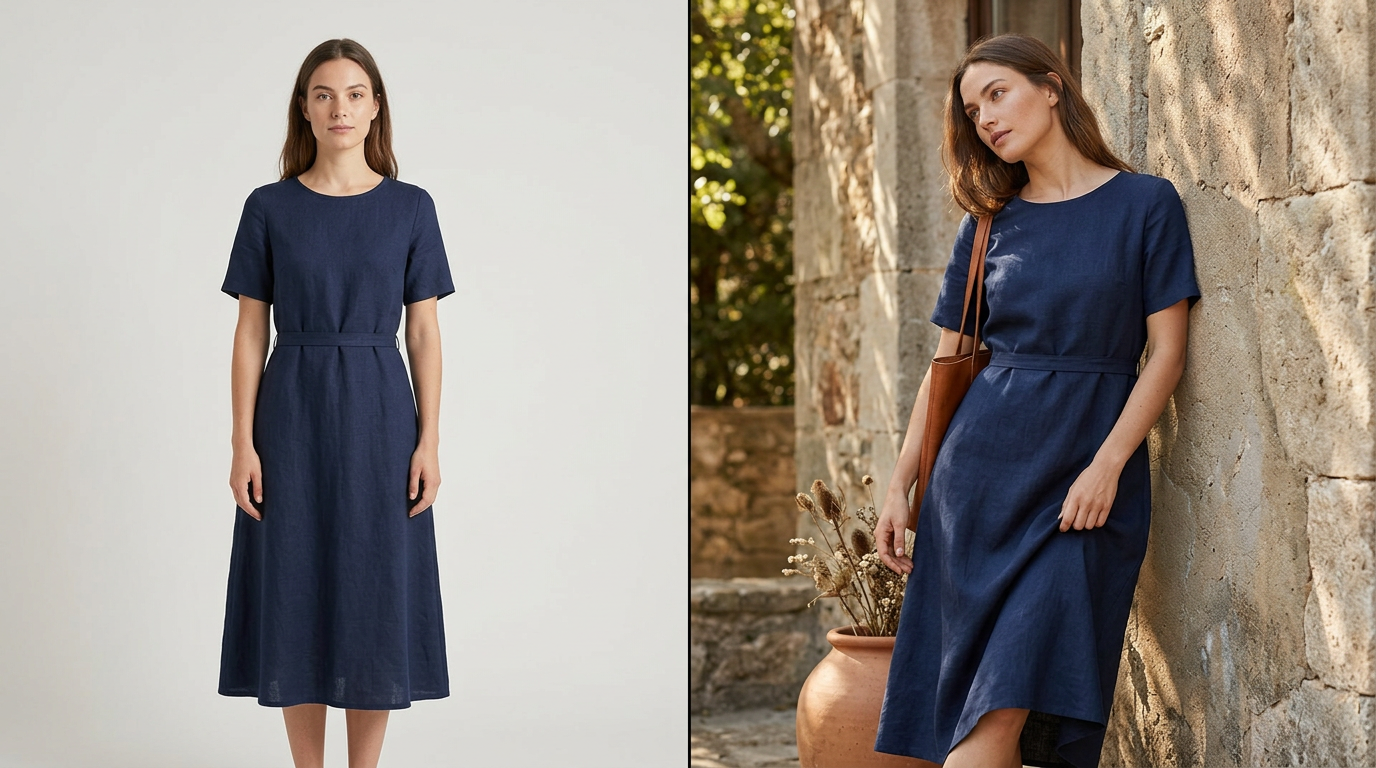 PDP images can prioritize clarity while campaign visuals carry more mood and movement.
One of the most useful ways to stay consistent is to stop asking one image system to do every job.
PDP visuals should prioritize clarity
On a Shopify product page, shoppers usually need to understand:
- silhouette
- fit
- proportion
- color
- texture
- visible details
That usually means cleaner backgrounds, more repeatable angles, and less dramatic posing.
Campaign visuals can push mood further
For homepage banners, launch emails, paid social, and lookbook placements, you can allow more variation:
- stronger pose energy
- richer scenes
- more directional lighting
- multi-product styling
Flatline Agency's overview of fashion brands on Shopify mentions lookbooks and visual collections that help customers visualize outfits and related products. That supports the role of more styled merchandising placements on a fashion storefront. The split between structured PDP imagery and more expressive campaign imagery is a practical recommendation: keep product-page visuals easy to compare, and use campaign placements to add mood.
Use category-based consistency, not one rigid look for the whole store
A strong catalog does not require one identical treatment for every product type.
It often works better to create consistency at the category level.
For example:
- knitwear may need softer poses and closer texture crops
- occasionwear may need full-length posture and movement shots
- basics may benefit from cleaner, more standardized framing
- accessories may need tighter crops and simpler backgrounds
The important part is to document the rules per category so the differences feel intentional.
Create a standard gallery sequence for Shopify PDPs
A reliable image order makes the storefront easier to browse and easier to maintain.
A simple fashion PDP sequence might look like this:
- Hero image: front-facing or most legible primary view
- Secondary angle: side or three-quarter view
- Back view: when relevant for fit or construction
- Detail view: fabric, print, closure, or texture
- Contextual shot: movement or styling variation
You do not need all five on every SKU. But using a defined sequence reduces the randomness that makes a catalog feel stitched together.
Decide where consistency matters most first
If you cannot update the entire catalog at once, prioritize the places where inconsistency is easiest to spot.
Start with:
- best-selling collections
- new arrivals
- products grouped together in merchandising blocks
- landing pages that receive paid or email traffic
- frequently restocked products with mismatched legacy imagery
This improves the customer-facing experience before you touch the entire long tail.
Treat image consistency as a repeatable workflow
The real challenge is not creating one good batch. It is keeping future launches aligned.
A practical workflow looks like this:
Step 1: Define the style profile
Document model direction, framing, pose rules, background treatment, and gallery order.
Step 2: Test on a small product set
Use a small batch from one category and compare the results side by side.
Step 3: Review in Shopify context
Do not review images only as standalone files. Check them where customers actually see them:
- collection thumbnails
- PDP galleries
- related-product modules
- mobile layouts
Step 4: Adjust the system before scaling
If backgrounds look uneven in collection tiles or certain poses make fit harder to read, update the rules before generating more assets.
Step 5: Roll out category by category
Apply the system in batches so the storefront improves in a controlled way.
Practical review criteria for AI on-model images
When reviewing generated product imagery, use criteria based on shopper clarity, not novelty.
Look for:
- garment shape reads clearly at thumbnail size
- proportions feel believable across the set
- color stays consistent within the product range
- key details are visible without distracting styling
- backgrounds do not compete with the product
- poses help explain the garment
- gallery order feels familiar across comparable SKUs
Reject or revise images when:
- fit looks inconsistent between angles
- styling changes the product impression too much
- crops make adjacent collection tiles look uneven
- background tone shifts noticeably across one collection
When to intentionally break consistency
Consistency should create trust, not sameness.
It makes sense to bend the system when:
- a hero launch needs more editorial energy
- a premium capsule deserves a distinct treatment
- a category has different fit-explanation needs
- a seasonal campaign calls for a temporary mood shift
The key is to break the rules on purpose and in a contained way.
For example, you might keep PDP images standardized while using a more expressive treatment for a homepage story, launch email, or lookbook section.
If your store is still deciding which source images to use, compare ghost mannequin vs. AI model photos first. If you already have clean supplier or flat-lay images, the simplest starting point is turning flat-lays into studio-style Shopify photos.
A simple framework for small Shopify fashion teams
If you want the shortest version, use this:
- choose one primary model direction for the core catalog
- set one default background style for PDPs
- create a pose set by category, not by SKU
- standardize the first three to five gallery positions
- review images inside Shopify layouts, not only in folders
- test on a small batch before rolling out wider
That alone can make a storefront feel much more coherent.
Final thought
A polished Shopify catalog usually comes from a few clear visual decisions repeated well over time.
If your store currently mixes flat lays, older shoot assets, and newer on-model imagery, start small. Pick one product group, define a house style, and review the results in collection pages and PDPs before expanding further.
If you want to improve storefront consistency without overhauling your full catalog, test a small batch of flat-lay products first, define a house style that works on your PDPs, and expand only after the system holds up in your Shopify storefront.
For more product visual workflow guidance, browse more Shopify fashion visual workflow guides.
Frequently asked questions
What is the fastest way to improve visual consistency across a Shopify fashion catalog?
Standardize a few variables first: model direction, background style, crop, and the first few gallery positions on each PDP. Then apply that system to one category or collection before expanding.
Should Shopify product pages and campaign images use the same visual style?
Usually not. PDP images should prioritize clarity and repeatable angles. Campaign visuals can be more expressive. Separate rules for each use case help your storefront stay clear and on-brand.
How many models should a small fashion brand use across its catalog?
Most small brands do better with a controlled model system: one signature model or a small model family with clear category assignments. Too much variation can make the catalog feel fragmented.
What makes AI on-model images look inconsistent across Shopify collections?
Common causes include changing pose logic, uneven crops, inconsistent background treatment, shifting framing, and mixing categories without clear style rules. Reviewing images side by side in collection grids helps catch these issues quickly.